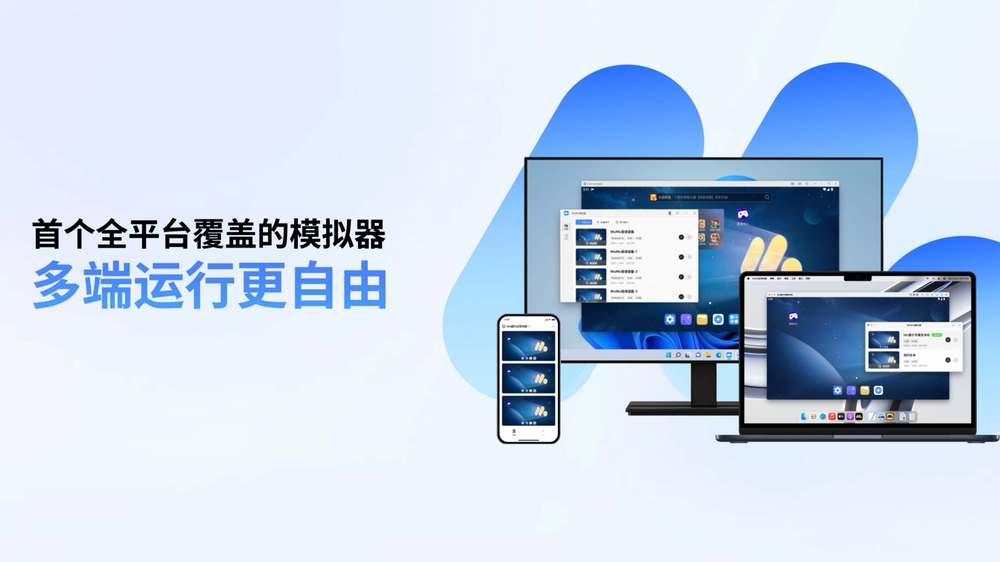
We suggest downloading from the official site or this site playermumu.com, since overseas downloads are generally slow and downloading from this site is steadier and faster.
Downloading the installer itself does not require signing in to or registering a NetEase account, and it works fine while signed out. Overseas Chinese users in particular are advised to download from this site to avoid throttling on the official overseas nodes.
The Windows version has free core features and multi-instance with no paywall, while the Mac version is a Pro form that subscribes after a 7 day trial, so choose by need.
Windows 7/10/11 can all install it, and macOS supports both Apple chip and Intel machines.
We suggest 8GB or more memory, a quad-core or higher CPU, and enabling VT virtualization in BIOS, so multi-instance and high frame rates can run at full.
Low-spec machines can also use it, running a single instance and lowering the resolution a bit to smoothly play common mobile games.
You can switch to the offline installer, change networks, or download from this site backup entry to avoid stalls caused by a weak network.
After the download finishes, verify the installer is intact before installing, since a corrupt package causes install errors.
Downloading from this site playermumu.com is steadier, and for China-server games we suggest pairing with an accelerator to lower latency.
Google Play games need the Google packages installed inside the emulator and the Google assistant set to acceleration mode.
The first initialization needs to deploy the Android system, so being a little slow is normal, and launching again after it completes is noticeably faster.
If it stays stuck at initialization for a long time, it is mostly VT not enabled or antivirus blocking, see the install error troubleshooting.
Below are real questions and answers about download and install, covering download entries, offline packages, system requirements and weak-network handling.
How do I pay for MuMu emulator paid membership? What if an overseas credit card payment fails?
Payment only happens in the Mac version Pro. Through the Mac App Store or the international version you can pay with a credit card, Apple Pay or PayPal (good for overseas Chinese users, no domestic payment account needed), and through the NetEase official site you use WeChat or Alipay scan. If an overseas credit card fails, we suggest switching to Apple Pay or PayPal, or confirming the Apple ID region matches the card type. The material does not list specific failure-cause troubleshooting (needs real testing to confirm), and you can contact MuMu support (QQ: 800185404) for help.
What payment methods can I use to buy MuMu Pro membership in Taiwan or Hong Kong? Is PayPal supported?
Yes, you can use PayPal. MuMu Pro is the paid version made for macOS (M series Apple computers), and payment methods vary by channel: buying through the Mac App Store Handheld MuMu or the international version supports credit card, Apple Pay and PayPal, so overseas Chinese users do not need a mainland China payment account to pay. If you go through the NetEase official site channel, it is WeChat scan or Alipay scan. The Windows version is completely free with no payment involved, so do not confuse the two.
How do I cancel MuMu emulator membership auto-renewal? Will I be charged if I do not renew?
Only the monthly auto-renewal of the Mac version MuMu Pro (18 RMB per month) has auto-renewal, and it charges automatically 24 hours before it expires. If you subscribed through the Mac App Store, the way to cancel is to turn off auto-renew in the App Store or Apple ID subscription management, and once it is off you are no longer charged at expiry. If you chose a fixed-term 30 day, 90 day or 365 day membership, it does not auto-renew and simply stops at expiry. The Windows version is free with no subscription or charge. For the exact cancel entry, follow the current instructions of your purchase channel (needs real testing to confirm).
Will the free MuMu emulator be stuffed with ads or bundle other software during install?
The free Windows version of the MuMu emulator does have splash ads and desktop pop-up ads by default, which the community has widely observed, and although it officially claims to be ad-free, there is a real gap. However these ads are not necessarily bundled at install, and NetEase has stated that some floating ads are actually caused by rogue ad plugins on the computer, so we suggest a full virus scan and cleanup. There are free do-it-yourself ways to remove ads: delete the splash ad cache, set the ad config file to read-only, replace the built-in desktop launcher, or use Hosts to block the ad domains, none of which cost money.
Will installing the MuMu emulator quietly install other unknown programs onto my computer?
The genuine build downloaded from this site playermumu.com showed no bundled malware in several independent tests (virus scans, VirusTotal) and self-checks by Hong Kong and Taiwan users, and the main program is not a virus or trojan. The real risk is the download source: there are many unofficial download sites and cracked or lifetime versions online, and these third-party modified packages may be repacked, stuffed with ads or bundled with software. So downloading only from this site and avoiding third-party sites and copycat domains avoids having unknown programs quietly installed.
If I type my game account and password into the MuMu emulator, can NetEase see them?
The genuine MuMu downloaded from the official site showed no malware or theft behavior in independent virus scans and self-checks by Hong Kong and Taiwan users, the main program is not a trojan, and under normal use you do not need to worry too much about typed credentials being sent back. What you really need to watch out for are third-party sites or cracked versions, since these repacked builds carry the risk of backdoors and keylogging, so be sure to download only from the official site. Also, unknown rogue plugins on the computer can cause problems, so we suggest a regular full virus scan. Whether the emulator itself can see the credentials has no official statement (needs real testing to confirm).
Is it safe to sign in to a Facebook account and play games on the MuMu emulator? Could my FB be stolen?
Signing in to Facebook with the genuine MuMu downloaded from the official site, where the main program showed no malware in independent tests, is about as safe as signing in on a normal phone. The Hong Kong and Taiwan community even suggests overseas Chinese users prefer binding with Facebook (rather than Google) for games, which is smoother in practice. To avoid having your FB stolen, the key is still to download only from the official site, not use third-party cracked versions (these repacked builds carry backdoor risk), and regularly run a full virus scan to clean out rogue plugins. General account-safety practices such as enabling two-step verification are still advised on your own (needs real testing to confirm).
If I play NetEase own games on the MuMu emulator, am I absolutely never going to be banned?
You cannot say absolutely never. MuMu states clearly that whether you get banned depends on each game makers anti-cheat or anti-emulator policy and is not caused by MuMu itself. MuMu can run mainstream mobile games normally, but some competitive games (the official example is Party Star) running on an emulator may be banned by the game side. NetEase own games are usually friendlier to emulators, but it still follows that game current policy. When unsure, we suggest asking the game official or MuMu support first.
Are non-NetEase games (such as miHoYo or Tencent) more likely to be detected and banned on MuMu?
Ban risk is not about whether it is NetEase but about whether that game has anti-emulator detection. MuMu states that whether you get banned is decided by each game makers anti-cheat policy, and some competitive games running on an emulator may be banned. The community has real cases too, for example Honor of Kings (Tencent) where a player signed in via MuMu, was shown as banned, and only recovered after switching back to the original sign-in method. So competitive games with high anti-detection carry higher risk, and before running such games it is best to ask the game official or MuMu support first.
Does the MuMu emulator have an international version? Is its content and safety the same as the China version?
Yes. This official site is playermumu.com. Overseas and Southeast Asian Chinese users are advised to download from this site first: it includes Google Play, supports many languages, covers more than 200 countries and regions, is lighter and ad-free, and downloads fast overseas. On safety it is also made by NetEase, and as long as you download from this site it is genuine, with the difference mainly in ecosystem and configuration (you need to set up a proxy to use Google services) rather than the level of safety.
When the MuMu emulator runs a game, the CPU spikes to 100 percent and the fan spins hard, is this normal or a problem?
Running Android games on a computer with the MuMu emulator uses more CPU and runs hotter than ordinary software, which is normal, and is more pronounced with large mobile games. But if it stays at 100 percent or even lags, it is mostly a configuration or setting issue: first confirm VT (virtualization) is enabled in BIOS, which is the necessary condition for smoothness, update the graphics and sound drivers to the latest, switch the graphics rendering mode in the settings center and restart, and do not allocate too many cores or too much memory at full. The officially recommended hardware is i5-7500 or above, quad-core or more, and 4GB or more memory (8GB recommended for large games), and running large games below that easily maxes out.
Can a low-spec computer (such as i3 with 8GB memory) run the MuMu emulator smoothly?
The MuMu emulator can run on an i3 with 8GB, but running large mobile games may be a struggle. The officially recommended setup is a CPU of i5-7500 or above, quad-core or more, and 4GB or more memory (8GB recommended for large games), and the CPU must support and have VT (virtualization) enabled. 8GB of memory meets the bar, but the i3 cores and performance are on the low side, so small or 2D games are mostly smooth while large 3D games lag easily. Optimization: confirm VT is enabled in BIOS, update the graphics driver, switch the rendering mode, do not open too many instances, and set image quality to medium-low. A Surface cannot run it because it does not support VT.
Is it safe to bind a credit card in the MuMu emulator and top up inside a game? Will the money flow be intercepted?
The genuine MuMu main program downloaded from the official site showed no malware in independent virus scans, in-game top-ups go through that game and the payment provider own money flow (such as Google Play or the credit card networks) and are unrelated to whether the emulator is paid, and the emulator itself does not handle or intercept the money flow. The real risk is using a cracked version from a third-party site, since these repacked builds may carry keylogging, so be sure to download only from the official site. General top-up safety practices (such as confirming the official payment page and enabling card spending notifications) are still advised on your own (needs real testing to confirm).
On a Cambodia or Myanmar network, MuMu emulator downloads often fail, is it throttling or a block?
It is mostly slowness caused by download nodes being unfriendly to overseas rather than a local network block. A Hong Kong player tested downloading a 2GB game and only got 20 percent in an hour. We suggest: first, download from this site playermumu.com, which is faster overseas; second, change the DNS to 114.114.114.114 or 223.5.5.5 or any such, then run ipconfig /flushdns and restart the emulator; third, use the official acceleration service or the UU accelerator in the app store; fourth, if it still will not download, the community approach is to turn on a global proxy or VPN, and this site help center also has a Connection Guide for outside China, which is a community solution at your own risk.
After installing a game in the MuMu emulator it will not open and stays on a black screen, what should I do?
A black screen in the MuMu emulator is mostly related to display rendering or virtualization. Follow the official troubleshooting first: first, enable VT (virtualization) in BIOS, which is a necessary condition; second, use a driver tool to update the graphics and sound card drivers to the latest; third, go to the settings center advanced settings, switch to another graphics rendering mode and restart; fourth, temporarily turn off antivirus or firewall and allow the blocked emulator process. Win11 users also need to turn off Core Isolation and disable Hyper-V or VBS, otherwise a black screen or failure to start is likely. If it still does not work, uninstall and reinstall or run networkReset.bat as administrator to reset the network.
The MuMu emulator says it detected an emulator and cannot enter the game, what should I do?
This is the game side anti-emulator detection, not a problem with the MuMu main program, and whether it blocks or stops sign-in is decided by each game makers policy. Some competitive mobile games (the official example is Party Star) running on an emulator may be limited or even banned by the game side. The safe approach is to first confirm with the game official or MuMu support whether that game supports emulators, and if unsure do not force it, to avoid having your account acted on. The community does have so-called detection-bypass tutorials, but they carry risk, are not guaranteed to work and are not officially endorsed, so use your own judgment.
After setting up key mapping in the MuMu emulator, the keys do not respond in the game, what should I do?
First confirm the game screen is really in an operation mode that supports key mapping, and check whether the keys you set conflict with the system or other keys, and remember to save and apply after changing. Some games only accept mapping in certain screens (such as before entering battle), so return to the matching screen and try again. If the whole control is abnormal, restart the emulator to make the settings take effect. Item-by-item key-mapping troubleshooting is not covered in detail in the official material, so we suggest testing each key in the actual game, and contacting MuMu support if needed.
How do I update the MuMu emulator to the latest version? Do I need to reinstall?
Generally you do not need a full reinstall. MuMu has a built-in update mechanism, and you can usually check and update the version in the emulator menu or settings center, just follow the prompts to update, and your data and installed games are mostly kept. To use the full account experience (phone number or WeChat scan sign-in and so on), the official requirement is to update the emulator to version 4.0.10 or above. If something goes wrong after updating or the version is too old to upgrade online, then consider downloading the latest installer from the official site and reinstalling. For the detailed on-screen update steps, we suggest confirming by testing on your current version.
How do I add a second emulator clone in the MuMu emulator?
MuMu supports multi-instance, letting you run several independent emulator windows at once (commonly called clones), often used for multiple accounts or running several games at the same time. Generally you add a new instance through MuMu multi-instance or multi-device management tool, and each window system and data are independent of each other. Note that multi-instance is very demanding on CPU and memory, and opening too many makes them all lag, so go by your computer specs (with 8G memory do not open too many). For the exact on-screen steps to add a clone, the official multi-instance guide is a reference, and we suggest confirming the detailed steps by testing on your current version.
How do I set a different Google account for each multi-instance window in the MuMu emulator?
Each MuMu multi-instance window is an independent Android system, so each can sign in to a different Google account without interfering with the others. To sign in to Google in a given window, that window must have the Google packages installed and be in acceleration mode (a proxy or VPN is required), otherwise sign-in fails, and the international version itself includes Google Play, which is more convenient. Just open Google Play or Settings in each window separately and sign in to the matching account. For the details of multi-window account isolation, we suggest confirming by testing on the actual version.