Can I pay for MuMu Emulator Pro in Hong Kong dollars?
The payment currency for MuMu Emulator Pro depends on your channel and your Apple ID region. When you buy the Mac version of Pro through the Mac App Store, it supports credit card, Apple Pay and PayPal, and overseas or Hong Kong and Macau users can pay through international channels without a mainland payment account. If your App Store account is in the Hong Kong region, it should in theory settle in Hong Kong dollars. The official in-app prices listed in the source materials are shown in RMB (for example 365 days for 178 yuan), and the actual charged currency and amount follow the real-time quote for your App Store account region (you need to confirm by checking). The NetEase official site channel uses WeChat or Alipay.
How much in New Taiwan dollars is MuMu Emulator Pro in Taiwan?
The official in-app prices in the source materials are shown in RMB: 30 days for 18 yuan, 90 days for 50 yuan, 365 days for 178 yuan (early PTT posts also mention a yearly fee of about 239 RMB including 5 devices). When you buy through the Mac App Store, the actual amount is converted into New Taiwan dollars by your Taiwan-region Apple ID, and it varies slightly with exchange rates and Apple pricing, so there is no fixed official New Taiwan dollar price. The most accurate way is to open the in-app purchase page of the handheld MuMu app in the App Store and check the New Taiwan dollar price shown at that moment before you order. Payment can use credit card, Apple Pay or PayPal.
Is MuMu Emulator a free download in Hong Kong?
Yes, downloading the Windows/PC version in Hong Kong is completely free, with a free download, no subscription and no paywall. We recommend downloading from this site, playermumu.com (it serves more than 200 countries and regions worldwide and supports many languages), since it is smoother and faster to download overseas. The only paid item is the macOS version of Pro (for Apple M-chip computers, subscription after a 7-day trial). Remember to download only from the official domain of this site and avoid third-party sites and cracked versions.
Can I pay to subscribe to MuMu Emulator Pro in Singapore?
You can pay to subscribe to MuMu Emulator Pro in Singapore. When you subscribe to the Mac version of Pro through the Mac App Store, it supports credit card, Apple Pay and PayPal, and overseas users including those in Singapore can pay through international channels without a mainland China payment account. Prices follow the official in-app purchase: 30 days for 18 yuan, 90 days for 50 yuan, 365 days for 178 yuan (shown in RMB), and the actual charged amount and currency are converted in real time based on your App Store account region. The condition is that you use an Apple M-chip computer; Windows users pay nothing and need no subscription.
How many ringgit is MuMu Emulator Pro for users in Malaysia?
There is no fixed official ringgit (MYR) price. The official in-app prices are shown in RMB: 30 days for 18 yuan, 90 days for 50 yuan, 365 days for 178 yuan. When you buy through the Mac App Store, the amount is converted into ringgit by your Malaysia-region Apple ID, and it varies with exchange rates and Apple regional pricing. The most accurate way is to open the in-app purchase page of the handheld MuMu app in the App Store and check the ringgit price shown at that moment. Payment supports credit card, Apple Pay and PayPal, and overseas users can pay directly. Only an Apple M-chip computer requires payment, while Windows is free.
Can overseas MuMu Emulator users pay to buy Pro?
Overseas MuMu Emulator users can pay to buy Pro. When overseas users buy Pro through the Mac App Store, it supports credit card, Apple Pay and PayPal, with no need for a mainland China WeChat or Alipay account (only the domestic official site channel uses WeChat or Alipay). Prices follow the official in-app purchase: 30 days for 18 yuan, 90 days for 50 yuan, 365 days for 178 yuan, and the charge is converted into local currency in real time based on your App Store account region. Note that Pro is meant for Apple M-chip computers; on Windows it is completely free with no payment needed. Also, the Mac version leans toward the mainland ecosystem, so apps such as Taiwan versions may not install.
Does the free MuMu Emulator throttle speed, and do I have to pay to remove it?
No. The free MuMu version has no paywall-style speed throttling, the Windows/PC version is completely free with no feature wall, and download and run speeds do not rely on paying to unlock. Slow downloads are usually a network or overseas node issue, and you can use the three official tips: change DNS to 114.114.114.114 or 223.5.5.5 and then run ipconfig /flushdns, switch from WiFi to a wired connection, install the UU accelerator, or after logging in use the acceleration service in the top-right corner, all of which are free. Payment applies only to the macOS version of Pro and has nothing to do with removing throttling.
Will MuMu Emulator limit features if I do not pay?
MuMu Emulator on the Windows/PC version will not limit features if you do not pay. The free version has no feature wall, and basic functions such as multi-instance and key mapping can all be used for free, though it shows ads by default (which you can remove with free community methods). The only case of pay to keep using happens on the macOS version of Pro, which requires a subscription to continue after its 7-day free trial ends. In short: Windows does not limit features even without payment; on Mac you cannot continue after the trial ends unless you pay.
Can MuMu Emulator Pro run multi-instance for free?
On the Windows/PC version of MuMu Emulator, multi-instance is free by default, the free version has no feature wall, and multi-instance and key mapping cost nothing. The so-called Pro is the paid product on macOS, where multi-instance is one of its features, but the Mac version overall uses a subscription model after a 7-day trial, so using multi-instance on Mac falls into the paid range. Conclusion: if you want free multi-instance, use the Windows version; multi-instance on Mac is included in paid Pro and can be tried for free during the trial period.
If the MuMu Emulator official site will not connect in Hong Kong, is it blocked?
It is not necessarily blocked. A common cause is that the download nodes are not overseas-friendly, so accessing or downloading in Hong Kong can be very slow or even fail to connect, rather than a local bandwidth issue. We recommend downloading from this site, playermumu.com (maintained by an overseas team and covering more than 200 countries), which is usually more stable. If it still will not connect, change DNS to 223.5.5.5 or 114.114.114.114, then run ipconfig /flushdns and try again, or use a global proxy or VPN to access it. Be sure to download only from this site or the Tencent software center, and do not use copycat domains or third-party cracked sites, to avoid getting a repackaged version bundled with ads.
What should I do if the MuMu Emulator install package fails to download in Singapore?
Overseas Chinese users should download from this site, playermumu.com, first, as this is the official domain of MuMu, with faster and more stable overseas downloads, and never use third-party download sites or cracked versions to avoid repackaging and bundled ads. Before downloading, temporarily disable antivirus or protection software (such as PC Manager, 360 and Windows Defender), which often block the emulator process and prevent installation. If it still fails, switch to a wired connection, avoid company or campus network restrictions, run the installer as a system administrator, and in the custom install change the path to a solid-state drive on a non-system drive (D or E drive).
What should I do if MuMu Emulator fails to update overseas and cannot connect to the server?
Overseas connections often stall, so we recommend downloading from this site, playermumu.com, first, since it has an independent overseas team and nodes that are friendlier to overseas users. If it still will not connect, there are three official tips: first, switch to a wired connection and avoid company or campus network restrictions; second, change DNS to any of 114.114.114.114, 223.5.5.5 or 223.6.6.6, then run ipconfig /flushdns in the command line to refresh the cache and restart the emulator; third, run networkReset.bat in the emulator install directory as an administrator to reset the network. If downloading game resources is too slow, install an accelerator inside the emulator, or use a global proxy or VPN (a community method, at your own risk).





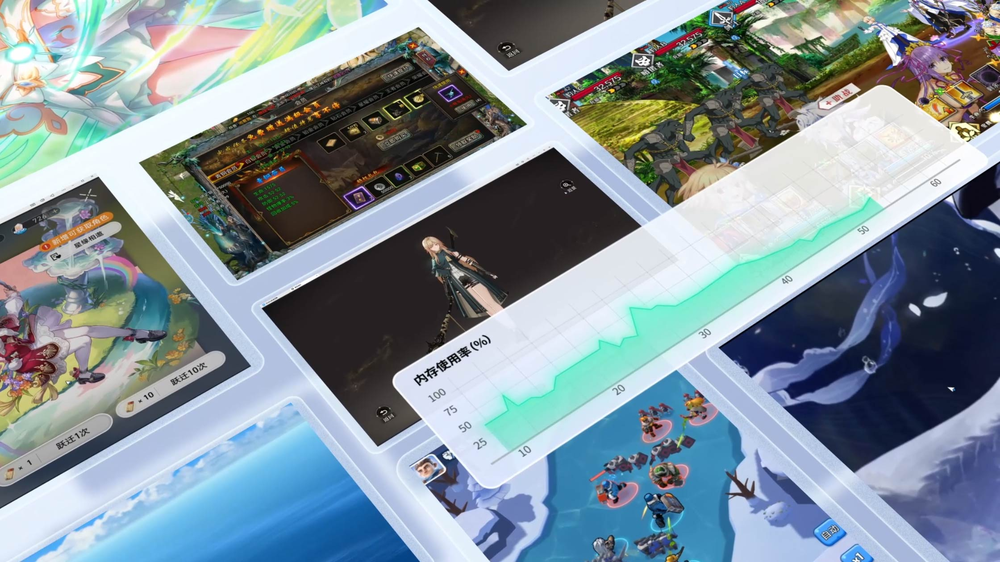
 Teamfight Tactics
 Naruto
 Fantasy Westward Journey
 Arknights