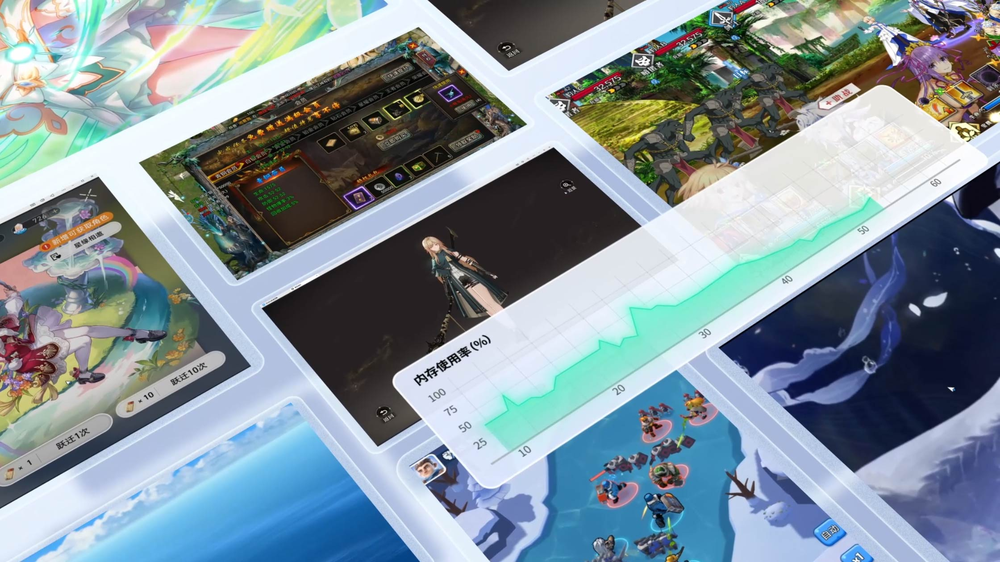
Assessing memory, CPU, GPU and VT status first lets you predict how many instances you can run and how high to set resolution and frame rate, saving detours.
MuMu smoothness depends heavily on VT and memory. Estimating in advance avoids finding lag only after installing and then going back to adjust item by item.
Select your memory, CPU cores, GPU and VT status, click start to estimate, and you get a recommended instance count, resolution and frame rate.
The results give suggestions based on experience weights from common machine types, are for reference only, and the actual performance also depends on the specific game and background load.
The entry tier suggests a single instance at phone resolution, the mainstream tier can run 2 to 4 instances at 1080p, and the high performance tier can run 4 or more instances with high frame rates enabled.
Competitive mobile games are sensitive to frame rate, so when the configuration is sufficient, prioritize enabling the 120/144/240 high frame mode for more responsive control.
Stable 2–4 instances; 1080p + 60–120 FPS for main titles.
VT virtualization is the prerequisite for the emulator to run at full performance, and without it there is clear lag and it is hard to run several instances stably.
VT is enabled in BIOS (Intel VT-x or AMD-V), and once enabled, multi-instance and high frame rates truly take effect.
If memory is tight, run a single instance, lower the resolution and turn off high frame rate, and at the same time close background load and set game image quality to medium-low.
If you need multi-instance long term, upgrading memory to 16GB or more is the best value optimization, followed by enabling VT.
The table lists CPU, memory, GPU and the runnable instance count across three tiers, entry, mainstream and high performance, for quickly locating your tier.
Compare your machine parameters with the table to judge which tier setting combination to use.
Below are real questions and answers about configuration and performance estimation, to help you understand the scoring logic and tuning priorities.
The MuMu emulator shows a black screen but the control buttons in the top right are still there, is it a graphics driver problem?
With the control buttons present but the screen black, it is usually exactly a graphics rendering or driver issue. First update the graphics driver to the latest with a driver tool or the official site, then go to the settings center advanced settings, switch to another graphics rendering mode and restart, letting it switch from integrated to discrete GPU (or the reverse). Win11 users must turn off Core Isolation and disable Hyper-V or VBS, since such conflicts also cause a black screen. On multi-GPU laptops, set MuMu to run on the discrete GPU in the graphics control panel. Going through it item by item usually solves it, and reinstall only if nothing works.
The MuMu emulator needs VT enabled which requires entering BIOS, what do I do if I do not know how to enter BIOS?
Press the BIOS hotkey repeatedly at boot, and the key varies by motherboard: commonly Del when the boot logo appears, often F2 on laptops, and F10 or Esc on some brands, with the bottom of the screen usually showing a hint. Once inside, find Intel VT-x or SVM (AMD) or Virtualization under the CPU or Advanced section, set it to Enabled, and save and exit (usually F10). Win10/11 can also enter from UEFI firmware settings after Settings, Recovery, Advanced startup, Restart. Enabling VT is a necessary condition for MuMu to run smoothly, so restart after changing it and then open the emulator. The exact hotkey follows your motherboard hint.
Can the MuMu emulator run without VT enabled? How badly will it lag?
By the official statement, enabling VT (virtualization) is a necessary condition for the emulator to run smoothly, and not enabling VT often causes it to stick at 99 percent, spike the CPU, lag severely or even fail to start at all. Even if it barely runs, the experience is far worse than with VT on. So we strongly suggest entering BIOS to turn on Intel VT-x or AMD SVM. Note that Microsoft Surface devices do not support VT in hardware and therefore cannot run MuMu. After changing VT, restart the computer and then launch the emulator, and most lag and startup problems will ease.
Mouse and keyboard input in the MuMu emulator lags and only responds after a long delay, what should I do?
Input lag in MuMu is mostly related to tight system resources or rendering settings. First confirm VT is enabled and give enough memory (8GB recommended for large games), close background load such as Tencent PC Manager, 360 or Defender and allow the emulator process, and go to advanced settings to switch the graphics rendering mode and restart to hand the load to the discrete GPU. On Win11, turning off Core Isolation and Hyper-V can also improve lag-type delay. If key-mapping hit points respond slowly, check whether the key settings took effect. On a laptop remember to plug in the power and run high performance mode, since power-saving mode throttles and causes sluggish response.
After minimizing the MuMu emulator to the background, the game lags or disconnects, how do I keep the background from lagging?
This is mostly the system power-saving or background throttling at work. First go to Windows Power Options and choose High performance or Ultimate Performance, plug in the laptop, and do not let it enter power-saving mode, and in system settings exclude MuMu from background power saving and sleep limits. For disconnects, prefer a wired network and avoid campus or company network limits. You can also allow MuMu in the antivirus or firewall to keep it from being blocked in the background. If it still disconnects, change the DNS to 223.5.5.5 and run ipconfig /flushdns, then restart and try again. The exact throttling items need confirming by testing on your system version.
The MuMu emulator has very different frame rates with and without the laptop plugged in, is power-saving mode throttling it?
Yes, this is a very common phenomenon on laptops. When not plugged in, the system defaults to power-saving mode and lowers the CPU and GPU frequency to save power, so frame rates naturally drop a lot. The fix: plug in the power, choose High performance or Ultimate Performance in Windows Power Options, set MuMu to run on the discrete GPU in the graphics control panel, and raise the maximum processor state in battery mode. After plugging in and high performance, frame rates usually recover. Pairing this with enabling VT and giving enough memory (8GB recommended for large games) makes the experience steadier.
Which lags less, MuMu 12 or MuMu Pro? Is the upgrade worth it?
The two are actually different platforms: MuMu 12 is the Windows or PC version and is completely free, while MuMu Pro is the paid version made for macOS (Apple M chips) with a 7 day trial then subscription (from 18 RMB per month). So whether to upgrade depends on what computer you use. Windows users just use the free MuMu 12 and tune VT, graphics rendering and memory to be smooth enough, with no payment needed. Mac users (especially M series chips) have a great community track record, with one user on a Mac mini M4 calling the smoothness exactly what I wanted, clearly better than BlueStacks. For Mac users the paid version is considered worth it.
Compared with LDPlayer and Nox, which is the smoothest and crashes least, MuMu or them?
By the available material, MuMu has a better reputation for compatibility, stability and smoothness, officially claiming about 99 percent compatibility with mainstream mobile games, and overseas communities (PTT, Bahamut) also mostly recommend the MuMu official or international version to avoid lag. On safety it is worth noting: there is discussion that LDPlayer was once found to contain unknown malware, while genuine MuMu showed no bundled malware in tests from several parties, making its relative reputation better. Smoothness and crashing also depend a lot on your computer configuration and settings, so we suggest installing each and testing on your own machine. Whichever one, always download from the official site and do not use third-party cracked versions.
On the same computer other emulators are smooth and only the MuMu emulator lags, is the problem with MuMu?
It is not necessarily a problem with the MuMu main program and is more likely a setting or environment conflict. Focus your checks on: whether VT is enabled, whether the discrete GPU is in use (switch the rendering mode in advanced settings and restart), whether Win11 has Core Isolation or Hyper-V on, since these two conflict with MuMu 12 and make it run poorly while other emulators may not be affected, and whether antivirus blocked processes such as NemuDrv. Also confirm you installed the official genuine build rather than a repacked, ad-bundled third-party version. After going through these item by item it usually recovers, and if it is still abnormal, contact official support (QQ 800185404).
Can paid membership fix lag in the MuMu emulator, or can the free version be tuned to be just as smooth?
First to be clear: the Windows version MuMu 12 is completely free with no feature wall, and lag can be solved by settings alone, enabling VT, updating the graphics driver, switching the graphics rendering mode, giving enough memory, and turning off Core Isolation or Hyper-V on Win11, none of which cost money. Paid membership exists only in the macOS MuMu Pro (7 day trial then subscription from 18 RMB per month), which is the entry threshold to use it on the Mac platform, not an acceleration pack for Windows. So Windows users do not need to buy a membership for smoothness, while Mac users must subscribe to use it, and the community has tested its Mac smoothness to a good reputation already.
Deleting and reinstalling the MuMu emulator made the lag go away, is there a way to recover smoothness without reinstalling?
Yes, reinstalling is really just resetting the environment, and you can reproduce that effect item by item without reinstalling: confirm VT is enabled, update the graphics and sound drivers with a driver tool, close Tencent PC Manager, 360 or Defender and allow processes such as NemuDrv, go to the settings center advanced settings to switch the graphics rendering mode and restart, and turn off Core Isolation and Hyper-V on Win11. For network problems, run networkReset.bat in the install directory as administrator to reset. Then clear background load and give enough memory. After doing these you usually do not need to reinstall to recover smoothness, and if problems keep recurring, we suggest installing MuMu on an SSD non-system drive for more stability.
Is the MuMu emulator available on iPad or iPhone? Why can I not find it in the App Store?
MuMu is a computer-side Android emulator, with only a Windows (PC) version and a macOS (Apple computer) version, and no iPad or iPhone version, so naturally you cannot find it in the iOS App Store. Its purpose is to run Android apps and mobile games on a computer. Note: the Mac version is called Handheld MuMu or MuMu Pro, made for Apple computers (M chips), and it appears in the Mac App Store rather than the iPhone or iPad store, so do not mix them up. To play on a phone, just use the phone original apps, and to use an emulator go to a computer and download from this site playermumu.com.
The MuMu emulator has very low GPU usage but the CPU is maxed out, is it not using the GPU? How do I fix it?
It is very likely not using the discrete GPU and is being forced through CPU software rendering. The fix: first confirm VT is enabled in BIOS, go to the settings center advanced settings to switch the graphics rendering mode and restart to force it onto the discrete GPU, on multi-GPU laptops set MuMu to run as High performance or discrete GPU in the graphics control panel, and update the graphics driver to the latest with a driver tool. On Win11 be sure to turn off Core Isolation and disable Hyper-V or VBS, otherwise GPU acceleration is blocked and it falls back to CPU. After changing this the GPU usage usually rises and the CPU drops accordingly.
What settings do I need to enable to make the MuMu emulator smooth on Win11?
Win11 (especially 24H2) has a key pitfall: MuMu 12 conflicts with Microsoft Core Isolation and Hyper-V or VBS, causing it to run poorly or even fail to start. The official requirements: turn off Core Isolation, disable Hyper-V or VBS, and at the same time enable VT (virtualization) in BIOS. Missing any one of the three easily causes lag or a black screen. After setting them, restart the computer and then open the emulator for a clear improvement. If it still lags, go to the settings center and switch the graphics rendering mode to try.
Is the MuMu emulator on Mac used the same way as on Windows?
The features are similar but they are different products with different pricing. The Windows version (MuMu 12 or MuMu Player) is completely free, while the Mac version is called MuMu Emulator Pro, only supports Apple Silicon (M series) chips, and uses a 7 day free trial with a paid subscription after expiry (30 days 18 RMB, 90 days 50 RMB, 365 days 178 RMB and so on). In features, multi-instance, key mapping, recording, 240 FPS and virtual location roughly align with the Windows version, and the community has tested M chip smoothness to a good reputation. But the Mac version leans toward the mainland ecosystem, some users report Taiwan apps may not install, so before buying we suggest using the trial period to confirm the game you want to play can install.
How do I set the MuMu emulator to run games on the discrete GPU instead of the integrated GPU?
Rendering with the discrete GPU is usually smoother. MuMu itself can switch the graphics rendering mode in the settings center advanced settings, and when you hit lag the official advice is also to switch to the other rendering mode and restart. In addition we suggest setting the MuMu process to High performance (discrete GPU) in the Windows Graphics settings, and confirming the graphics driver is updated to the latest. On discrete-GPU machines, also be careful not to let the system power-saving policy switch it back to the integrated GPU. The detailed path to set the discrete GPU varies by driver (NVIDIA or AMD) interface, so we suggest confirming by testing on your GPU.
How do I set a proxy or VPN in the MuMu emulator to play overseas servers?
The general idea for playing overseas servers is to first use a global proxy or VPN to get past the firewall. This site playermumu.com help center has a Connection Guide for Outside of China that you can reference. In practice there are two routes: first, set a global proxy or VPN at the computer level so the whole machine goes through the proxy, and second, install a proxy app such as AndProxy inside the emulator, fill in the proxy server IP and port, and tick and fill the account and password if verification is needed. Note that a global proxy is mostly a community method and not positively endorsed by domestic officials, and third-party proxy stability and risk are at your own responsibility and need confirming by testing.
How do I set up keys and image quality to play Mobile Legends in the MuMu emulator?
Mobile Legends is a MOBA, so we suggest using the MuMu built-in key mapping to bind skills, recall, movement and so on to the matching keyboard positions, then adjusting image quality and frame rate in the in-game settings for stability. Note: whether a competitive game is allowed to run on an emulator is decided by the game side, and if unsure you can confirm with the game official first to avoid risk. The MuMu main program high frame rate and low latency benefit MOBA, and image quality goes from high downward to smooth depending on your computer configuration. The item-by-item best keys and image quality values for Mobile Legends are not provided in the material, so we suggest confirming by testing on your configuration.
How do I set key bindings and performance to play Genshin Impact in the MuMu emulator?
Genshin Impact is a large 3D game and is demanding on configuration. First make sure you meet the official recommendation: a quad-core or higher CPU, 8G memory recommended, a discrete GPU of GTX1050 2G or above recommended, and enable VT in BIOS. For performance, set the emulator allocated memory and cores to reasonable values, and turn in-game image quality and frame rate from high downward to stability. MuMu supports key mapping, so you can bind movement, view and skills to keyboard and mouse. On Win11 remember to turn off Core Isolation and Hyper-V or VBS to avoid lag. The item-by-item best key bindings and image quality values for Genshin Impact are not provided in the material, so we suggest confirming by testing on your machine.
How do I set up PUBG Mobile keys in the MuMu emulator to feel smooth?
PUBG Mobile is a shooter, so we suggest using MuMu key mapping to bind movement (WASD), fire, aim, scope, prone or crouch, picking up items and so on to keyboard and mouse, and making good use of the mouse to control the view or crosshair, which is far more intuitive than touch. Image quality and frame rate go from high downward to stability depending on configuration. Note that whether a competitive shooter allows emulators is decided by the game side, so if unsure confirm with the official first to avoid ban risk. The best per-key layout and sensitivity are not provided in the material, so we suggest confirming by testing on your own feel.