MuMu Emulator Version Choice, Uninstall and Update Guide
Facing several version numbers and update prompts often leaves you unsure which to pick. This article walks through choosing a version, updating, uninstalling, and reinstalling, explaining the real version questions so you pick the right build and upgrade smoothly.
How do I completely uninstall MuMu emulator with no leftovers?
First uninstall MuMu normally through the Control Panel or the Apps page in Settings, then manually check for and delete any leftover folders.
MuMu user data usually sits under C:\Users\your-username\AppData\Roaming\Netease\ (for example MuMuPlayer-12.0), so go in and delete the related folders as well. If the uninstall gets stuck, close your antivirus software (PC Manager, 360, Defender) and try again, or right-click and run as system administrator. Note: deleting these folders also wipes the saves inside the emulator, so back up important game data first.
After removing MuMu emulator a leftover folder remains, how do I delete it completely?
Leftovers after uninstalling are mostly user folders that you can remove by hand. Focus on the directory C:\Users\your-username\AppData\Roaming\Netease\ and delete the entire folder such as MuMuPlayer-12.0;
If you originally chose a custom install on the D or E drive, go to that install path too and delete the leftover main folder. If it will not delete, first make sure the emulator processes (including its driver such as NemuDrv) have fully ended, restart the computer if needed and then delete, or close your antivirus and operate as system administrator. Note that this wipes saves, so back up important data first.
Choose the stable build or the new build as needed, and learn the differences before updating.
Which is the latest MuMu emulator version? Which one should I download now in 2026?
The main build right now is the new MuMu version built on the Android 12 base (the PC build has reached 5.0). For overseas Chinese users in 2026, simply download the latest version from this site playermumu.com, which has Google Play built in, supports 13 languages, and is friendlier for overseas use.
Trust only the official domain of this site, and avoid third-party sites and any Pro lifetime or cracked versions, so you do not end up with a repacked build or one bundled with ads.
What is the difference between MuMu 12 and the older MuMu emulator? Which one should I use?
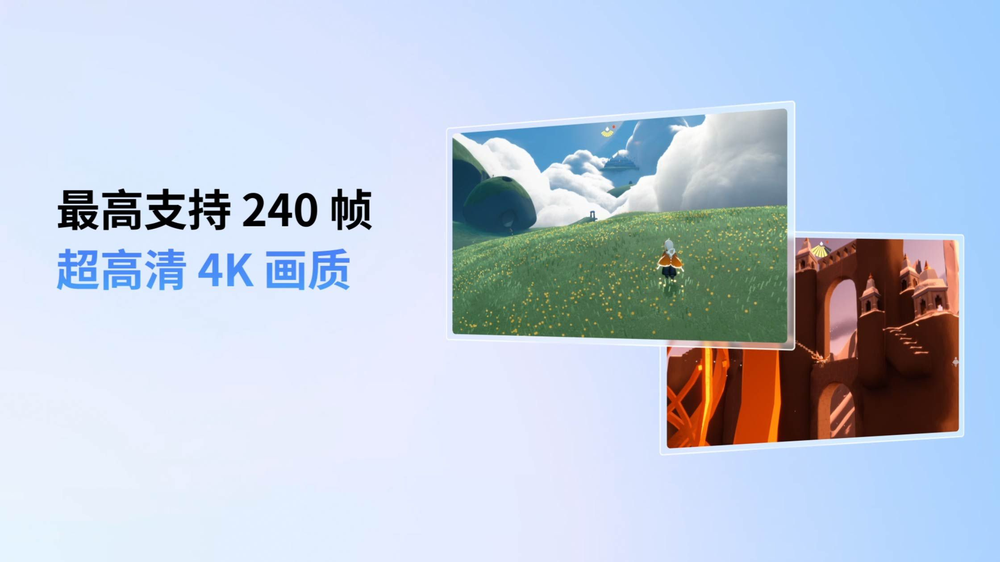
MuMu 12 is the new generation built on the Android 12 base. Compared with older builds it offers better compatibility, stability and performance, and supports multi-instance, key mapping, 240 fps, 4K and other features, claiming to fit about 99 percent of mainstream mobile games.
In general we recommend simply using the new build (MuMu 12). Overseas Chinese users who play overseas Google Play games should download from this site playermumu.com (Google Play built in, a proxy required); for China-server games the built-in app center is more convenient. Unless a specific game does not work on the new build, there is no need to go back to an older one.
Can MuMu emulator be downloaded and installed normally in Hong Kong?
Yes. Players in Hong Kong should download directly from this site playermumu.com, which covers more than 200 countries and regions, supports 13 languages, and is friendlier for overseas use;
Other download sources work too, but downloads overseas are generally very slow (one Hong Kong player measured a 2GB game reaching only 20 percent in an hour). Remember to close antivirus and protection software before installing to avoid interception, and enable VT virtualization on the host. When downloading, trust only the official domain of this site, and do not use third-party sites or cracked versions, to avoid bundled malware.
Which version do you download for MuMu emulator in Taiwan? Is it the same as the mainland version?
In Taiwan we recommend downloading from this site playermumu.com. The build here has Google Play built in, supports 13 languages, is lighter and ad-free, but using Google Play requires configuring a proxy.
For overseas Google Play games, downloading from this site plus a proxy is smoother; for China-server games use the built-in app center. Trust only the official domain of this site and avoid repacked builds from third-party Taiwan sites.
Can overseas Chinese users use MuMu emulator? Will it be region-locked?
Yes you can use it. MuMu has a dedicated overseas team, covers more than 200 countries and regions, supports 13 languages, and is aimed at overseas Chinese users from the start.
The emulator itself does not region-lock you out. What overseas Chinese users actually run into is not region locking but: 1) registering a NetEase account with a local phone number and not receiving the verification code (use a +86 number or log in with WeChat scan or password to get around this); 2) needing a proxy for overseas Google Play games; 3) slow downloads (download from this site playermumu.com). Handle these few points and it works smoothly.
Is MuMu emulator free? Does uninstalling and reinstalling cost money?
The Windows and PC build of MuMu emulator is completely free. Downloading, installing, uninstalling and reinstalling cost nothing, with no subscription and no paywall.
Only the macOS build MuMu Emulator Pro (for Apple computers with M chips) is paid, using a 7-day trial followed by a membership purchase, but uninstalling and reinstalling itself is still free. Note: uninstalling wipes the saves inside the emulator, so after reinstalling without a backup it will be a fresh state. Back up important game progress first or confirm it is already synced to the cloud with your game account.
How do I roll MuMu emulator back to an older version? Can I download older builds from the official site?
Officially the site mainly offers the current main build (MuMu 12 or the overseas MuMu Player), and does not necessarily provide historical older installers in an obvious place on the site.
If you really need to roll back to an older build, first uninstall the current version cleanly (remember to back up saves first), then find the matching older installer and reinstall; but be sure to obtain it only from official channels, and avoid downloading repacked or ad-bundled older builds from third-party sites. If you want to downgrade only because the new build became laggy, first try switching the graphics rendering mode and turning off Core Isolation; a downgrade may not be necessary.
Which MuMu emulator version is the best, most stable and least laggy?
Overall the current main build MuMu 12 (Android 12 base) is the top pick, with the best reputation for compatibility, stability and smoothness, claiming to fit about 99 percent of mainstream mobile games.
Overseas Chinese users who play overseas Google Play games should download from this site playermumu.com; for China-server games use the built-in app center. To run stable and smooth, enable VT in hardware, note that Windows 11 needs Core Isolation and Hyper-V turned off, and switch the graphics rendering mode in the settings center, which is more effective than agonizing over which version to use. On Mac (M chip) use the paid MuMu Pro, which the community rates well for smoothness.
MuMu emulator got very laggy after updating, can I go back to the version before the update?
When MuMu emulator gets laggy after updating, technically you can go back to an older build, but we suggest optimizing first and considering a downgrade later. After an update gets laggy, first try: 1) confirm VT is enabled in BIOS;
2) on Windows 11 (especially 24H2) you must turn off Core Isolation and disable Hyper-V and VBS, which is a very common cause of lag; 3) go to settings center and advanced settings, switch to another graphics rendering mode and restart; 4) update the graphics and audio drivers to the latest. If you have tried all of these and it is still laggy, only then consider uninstalling and reinstalling an older build, and be sure to obtain it only from official channels and back up saves first.
Below are real questions and answers about version choice, uninstalling and updating, covering version differences, upgrades, rollbacks and reinstalls.
Which is the official MuMu emulator download point? I worry about getting a fake one with a virus
Trust the official domain of this site playermumu.com to download (made by NetEase); the Tencent Software Center pc.qq.com also has an official distribution page. Overseas Chinese users should download from this site first. The genuine build has been checked by multiple parties with no bundled malware found; pop-up ads or virus reports online are mostly from a computer polluted by third-party rogue ad plugins, or from downloading a third-party site or cracked version. Be sure to avoid non-official sites such as 3dmgame and macappbox and any Pro lifetime or cracked versions, and run a full virus scan on your computer.
How do I uninstall MuMu emulator on a Mac? Is it the same as Windows?
Not entirely the same. The Mac build is a separate product, MuMu Emulator Pro (for Apple computers with M chips), and uninstalling follows the macOS way: usually move the app from the Applications folder to the Trash and empty it, then clear the related support files in your user directory (such as the matching folders in ~/Library). The Windows build is uninstalled from the Control Panel, then you clear the AppData\Roaming\Netease leftovers. Note: back up the saves inside the emulator before uninstalling; if you simply want to stop paying, remember the App Store monthly subscription must be canceled yourself in subscription management, otherwise it renews automatically.
What is the difference between the Mac and Windows builds of MuMu emulator? Which should I install?
The biggest differences are cost and hardware: the Windows build MuMu Emulator is completely free with no paywall; the Mac build MuMu Emulator Pro needs an Apple computer with an M chip and uses a 7-day trial followed by payment (about 18 yuan for 30 days, 178 yuan for 365 days, payable by credit card or PayPal). In features the two are roughly aligned (multi-instance, key mapping, recording, 240 fps, virtual location). Suggestion: on a Windows computer install the free Windows build; only on an M-chip Mac install the paid Pro build. But the Mac build leans toward the mainland ecosystem, and the community reports Taiwan apps may not install, so keep this in mind before buying.
MuMu emulator update keeps getting stuck at downloading, what do I do?
An update stuck at downloading is mostly a network or interception issue, so try in order: 1) switch to a wired network and avoid campus or company network restrictions; 2) change the DNS to 114.114.114.114 or 223.5.5.5 and so on, then run ipconfig /flushdns and retry; 3) close antivirus and protection software (PC Manager, 360, Defender) and allow the blocked MuMu processes (including the NemuDrv driver); 4) run as system administrator; 5) if overseas users still cannot pull it, downloading the latest version again from this site playermumu.com is often smoother.
Should I back up game data before uninstalling MuMu emulator? Will uninstalling wipe my saves?
We recommend backing up before uninstalling MuMu emulator. Uninstalling and deleting the emulator user folder (such as the directory under C:\Users\username\AppData\Roaming\Netease) also wipes the local saves inside the emulator, which is a reset. If the game account you play supports cloud or server saves (most online games and account-bound mobile games do), logging back into the game account after reinstalling usually pulls your progress back; but single-player or local-only games will be lost. To be safe, before uninstalling confirm that important games are account-bound and cloud-synced, or back up the related folders yourself.
The MuMu emulator uninstall entry is missing from the Control Panel, how do I remove it?
If you cannot find the MuMu uninstall entry under Windows Control Panel and Programs, you can go to the MuMu install directory and run the built-in uninstaller (uninstall) directly to remove it. If you truly cannot find it, you can first download and install the same version again (overwriting the original directory), then run the uninstall flow normally from the install directory or Control Panel. After uninstalling, manually delete leftover folders if you want it clean. The source material does not give the official steps verbatim for a missing uninstall entry, so the above is a general reliable approach that you should verify yourself.
The built-in uninstaller of MuMu emulator does not remove everything, how do I clear it manually?
First remove it normally with the built-in uninstaller, then clear leftover files by hand. MuMu user data is mostly in the Netease folder under your user directory (for example C:\Users\your-account\AppData\Roaming\Netease\MuMuPlayer-12.0), and you can delete that folder after uninstalling; also check the drive you chose at install time (such as D or E) and delete the MuMu install folder there as well. The Android image and downloaded game data are large and mainly hide in these directories. The source material does not list the full leftover inventory and registry entries verbatim, so before deleting, back up important data and verify yourself.
Is it normal that the C drive space is not freed after uninstalling MuMu emulator?
It is possible that leftovers were not cleared. The MuMu user folder (such as C:\Users\your-account\AppData\Roaming\Netease\MuMuPlayer-12.0) may remain after uninstalling, and the Android image and downloaded game data can reach the GB level, which is the main space hog. Manually deleting this Netease leftover folder usually frees the space; if at install time you put the emulator or data on a non-system drive (D or E), remember to delete the matching folder there too. Before deleting, confirm there are no saves you want to keep inside.
Which folder hides the MuMu emulator leftover files? What is the path?
The main leftovers are in the Netease folder under your user directory, for example C:\Users\your-account\AppData\Roaming\Netease\MuMuPlayer-12.0 (the data directory under it stores splash ad caches and the like). In addition, if at install time you used a custom install to put the emulator or data on a non-system drive (D or E), there will be a MuMu install folder there too, holding the Android image and downloaded game data, which are large. After uninstalling, manually delete both places to clear it. The source material does not list all subdirectories and registry locations verbatim, so confirm there are no important saves before deleting.
Should I clear the registry leftovers after uninstalling MuMu emulator? How?
Registry leftovers usually take very little space and generally do not affect use, so in most cases you do not need to clear them. If you plan a complete reinstall, or suspect leftovers are causing reinstall issues, first remove it with the built-in uninstaller, delete the Netease leftover folder under your user directory, then consider cleaning the registry. Cleaning the registry carries risk, so export a backup before operating, or use a reliable cleanup tool; manual edits are not advised for those who are unfamiliar. The source material does not provide an official MuMu registry cleanup path, so this is a general reliable approach that you should verify yourself.
Can the auto-update of MuMu emulator be turned off? I do not want to be forced to upgrade all the time
The source material does not provide the official location of a switch to turn off auto-update in MuMu. In general the update settings of emulators are mostly in the settings center options, so you can go into the settings center and check item by item for an update or check-for-update switch; if you cannot find an off option, choose Later or Cancel when prompted to upgrade to skip the update for now. Be aware that some new games may require a newer version to run, so going without updates for a long time can affect compatibility. The source material does not cover this verbatim, so the above is a general approach that you should verify yourself.
After updating MuMu emulator, do I need to reinstall the bound Google account and apps?
A normal version update of MuMu generally keeps your Android system data, and the Google account and installed apps usually do not need reinstalling. If after the update the Google suite acts up or the account will not log in, follow the official fix: 1) in the top-right [+] of KK Google Assistant choose One-Click Uninstall to remove the current Google suite; 2) go to menu [three], Settings Center, Property Settings, set the phone brand to Default Brand and the model to Default Model, then restart the emulator; 3) after restarting open KK Google Assistant again to reinstall the Google suite. Note that Google account login needs Google services and KK Assistant in Acceleration Mode (which requires a circumvention tool or proxy) to succeed.
After reinstalling MuMu emulator, are my original multi-instance clones still there?
The source material does not state verbatim whether multi-instance clones are kept after reinstalling. In general, if during reinstall you delete the user folders too (such as C:\Users\your-account\AppData\Roaming\Netease\MuMuPlayer-12.0 and the install folder on your chosen drive), the multi-instance clones and the saves inside usually get wiped along with them; if you only overwrite-install and keep the data directory, the clones are more likely to remain. To be safe, back up these folders before reinstalling. The source material does not cover this, so the above is a general reliable approach that you should verify yourself.
What is the difference between MuMu 12 and MuMu 6? My computer is older, which runs smoother?
MuMu 12 is the current main version, built on the Android 12 base, supporting 240 fps, 4K, multi-instance and other new features, but with higher hardware demands (VT must be on, and for big games 8GB RAM and a dedicated GPU above GTX1050 are recommended). MuMu 6 is an older version with a lower Android base, lighter on old computers. When the computer is older and underpowered, the older build may run smoother; but some new games require a newer version to run. We suggest trying MuMu 12 first, and considering the older build only if it lags badly. The source material does not list MuMu 6 Android base version and full differences verbatim, so verify yourself.
What Android version is MuMu 12? Is the older build Android 7?
MuMu 12 is built on the Android 12 system base, which is the current main version, supporting 240 fps, 4K and multi-instance among other features. As for whether the older build is specifically Android 7 or another version, the source material does not confirm this verbatim, so I cannot give you an exact number; in general the Android base of older emulator builds will be lower than 12. If you need a specific Android version (for example a game that only supports a certain version), we suggest confirming the matching base version on the official download page or with customer service. This point you should verify yourself.
Do I need to update MuMu emulator to the latest version to play certain new games?
It is possible. Some new games require a newer emulator version or Android base to run properly, so when a new game will not install or start, updating MuMu to the latest version often solves it. MuMu 12 currently uses the Android 12 base, has good compatibility and claims to fit about 99 percent of mainstream mobile games. That said, updating to the latest version can occasionally introduce compatibility issues, so if things break after the update you can consider going back to a stable older build. Decide whether to upgrade based on the needs of the game you want to play.
After updating MuMu emulator to the latest version it crashes instead, how do I go back to an older build?
When MuMu crashes after updating to the latest version, do not rush to roll back, because many post-update crashes are environment issues: confirm VT is on in BIOS, update drivers to the latest, temporarily turn off antivirus and allow blocked processes (such as NemuDrv), go to settings center and advanced settings to switch the graphics rendering mode then restart, and on Windows 11 24H2 turn off Core Isolation and Hyper-V and VBS. If you confirm the new version itself is incompatible and want to go back, first remove it completely with the built-in uninstaller (manually delete the Netease leftover folder if needed), then find an older build on the official site or an official offline installer. The source material does not provide an official downgrade channel, so be sure to get older builds from official sources and verify yourself.
Which MuMu emulator version suits a low-end computer?
On a low-end computer first confirm the hardware floor: it must support and have VT (virtualization) enabled, the CPU should be i5-7500 or 4 cores and above, RAM at least 4GB (8GB recommended for big games), and a dedicated GPU is best. If it meets these you can install the main version MuMu 12 (Android 12); if the configuration is weak and MuMu 12 clearly lags, consider an older, lighter build. You can switch the graphics rendering mode in the settings center and lower the resolution or frame rate to improve smoothness. Machines that do not support VT, such as the Surface, cannot run it. The source material does not list the minimum configuration of each older build verbatim, so verify yourself.
Do I need to uninstall the old MuMu emulator version before updating, or just overwrite?
The source material does not give the official statement verbatim on whether you must uninstall the old version before updating MuMu. In general emulator version updates are overwrite installs that keep your Android data, Google account and installed apps, with no need to uninstall first; but for major version jumps (such as an older build upgrading to MuMu 12) a clean reinstall is sometimes recommended to avoid compatibility issues. To be safe, back up the user folder before updating (such as C:\Users\your-account\AppData\Roaming\Netease\MuMuPlayer-12.0). This point follows the general approach, so verify yourself.
Will uninstalling and reinstalling MuMu emulator be detected as a new device that needs re-verification?
This depends on two kinds of accounts. One is the MuMu or NetEase account: logging in is not mandatory, and after reinstalling you can log back in with a phone number or ID plus password, or a WeChat scan; overseas users can use a WeChat scan or a +86 number to avoid the issue of not receiving SMS verification codes overseas. The other is the Google account inside the emulator or the game account you play: after reinstalling you may need to log in again, or even trigger the device verification of the game side, which is decided by each service security policy and is unrelated to MuMu. The source material does not give an official conclusion on whether a reinstall is judged a new device, so confirm based on the actual situation of each account.